Learning Guide
Preparation
- You have logged in to your account
(For help, see the Login Guide)
Access Your Course
- Go to My Courses
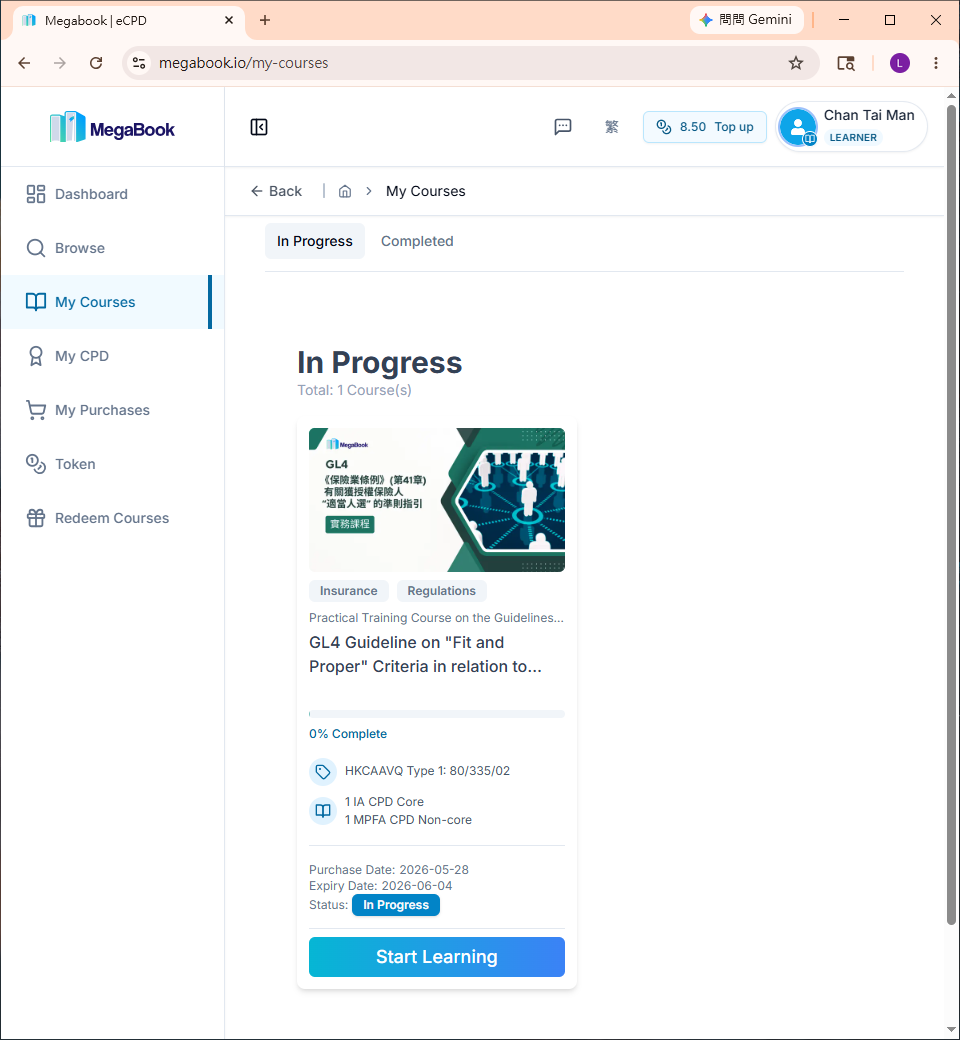
- Click "Start Learning" below the course
Start Your Learning Journey
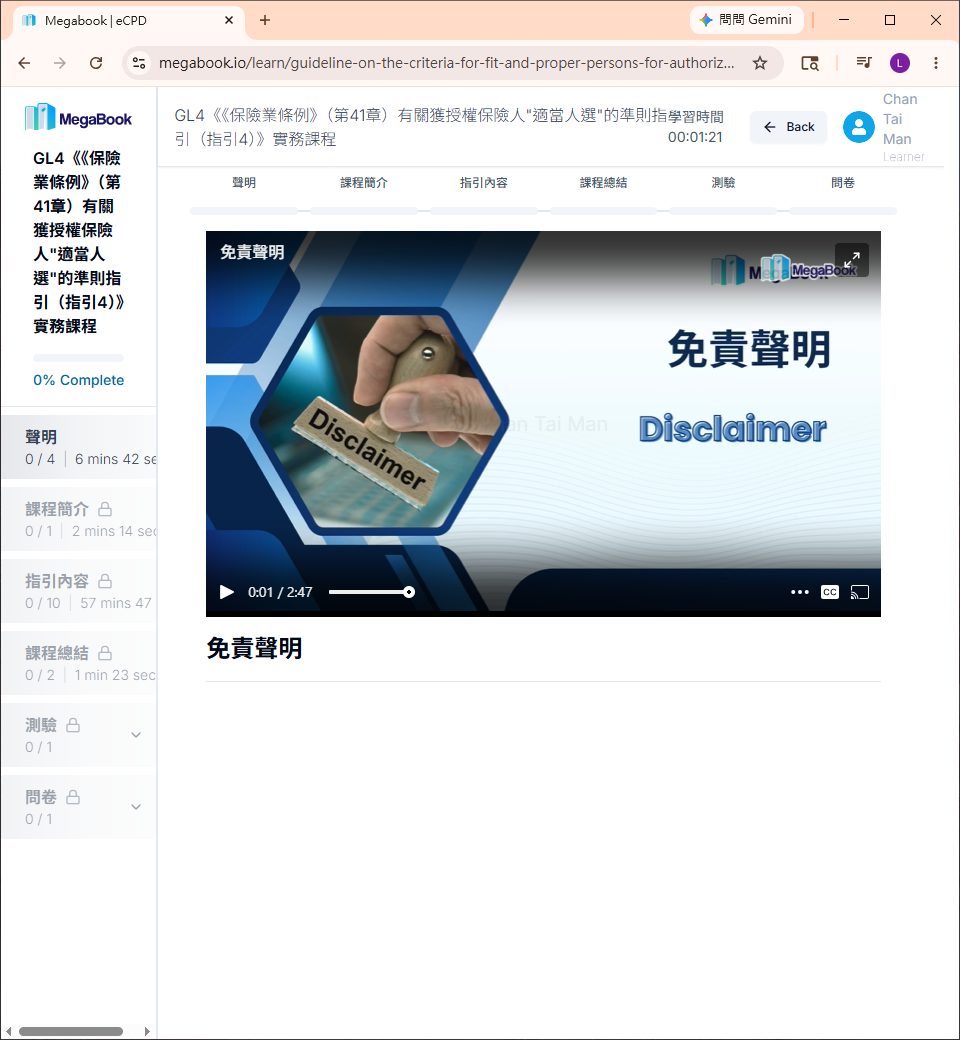
After clicking "Start Learning", you will be taken to the learning page. This page consists of several sections to help you navigate the course content effectively.
Key Sections of the Learning Page
| Section | Location | Description |
|---|---|---|
| Course Completion Percentage | Left | Shows your overall course progress |
| Course Chapter List | Left | Browse all chapter groups. Each group contains one or more learning chapters (the smallest unit of learning) |
| Video Player Area | Center | Plays the instructional video for the current learning chapter |
| Course Learning Time | Top Right | Displays your total study time for this course |
Watching Instructional Videos
While watching a video, you can:
- Pause / Play
- Adjust volume
- Enter full screen
- Adjust video quality
- Turn subtitles on / off
- Cast to another device
⚠️ Chapter videos must be watched completely to be marked as finished.
Moving to the Next Chapter
After finishing a video:
- A green notification will appear at the top: "You have completed this chapter"
- The current chapter on the left will turn green and show a ✔ checkmark
- A "Next Chapter" button will appear
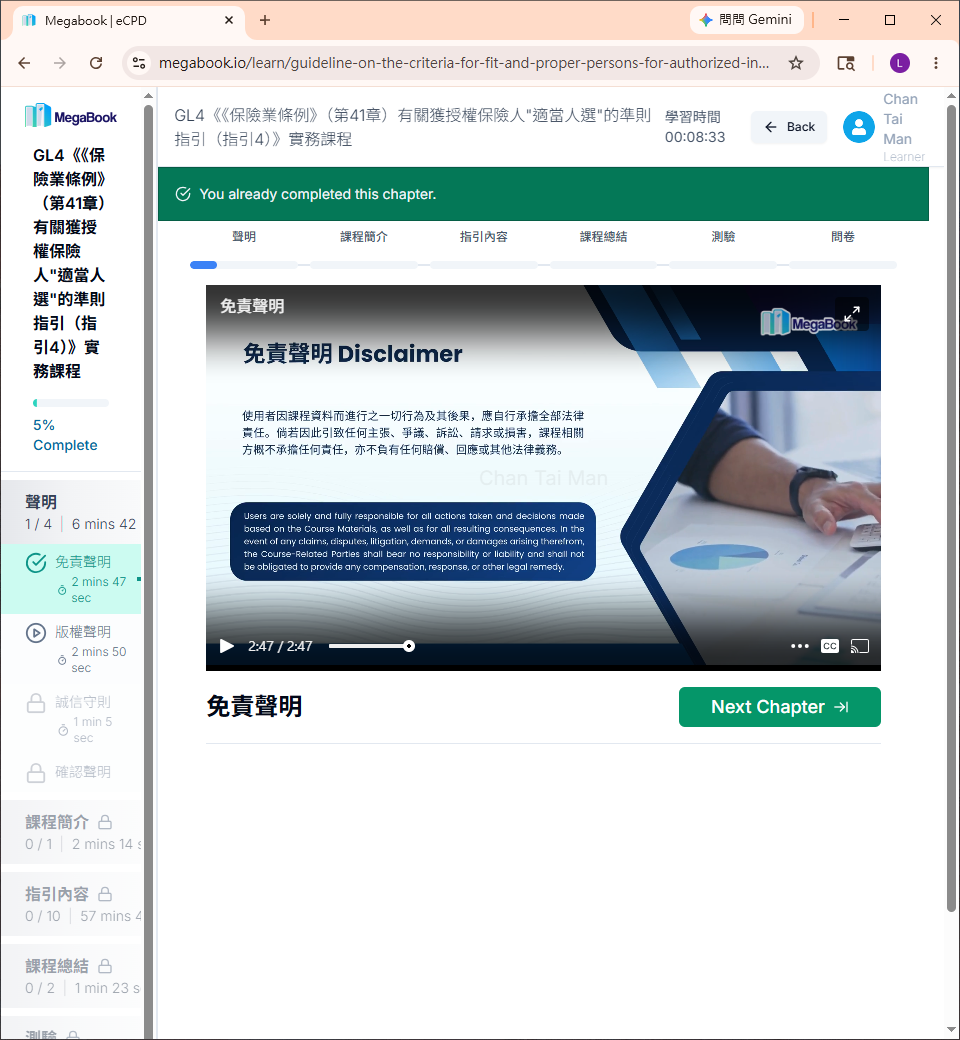
Click "Next Chapter" to continue learning.
Leaving the Current Learning Chapter
You can leave the learning page at any time.
⚠️ If you leave before finishing the current chapter's video, your playback progress will not be saved, and you will need to start from the beginning later.
✅ Completed chapters are not affected. (See Does chapter completion progress get saved?)
Your browser may show a confirmation dialog. Click "Leave" to continue.

Return to the Main Page
Click "← Back" in the top right corner to return to the course main page.
View Other Chapters
Using the Course Chapter List on the left, you can click on completed chapters to review past content.
🔒 Some chapters require completing the previous chapter to unlock.
This structured learning approach helps you build a smooth and organized learning experience.
Activity Verification Mechanism
Every 30 minutes, the system will send a verification code to your registered email address to confirm that you are still active.
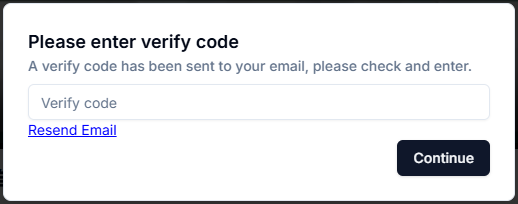
- Check your email inbox for the verification code
- Enter the code and click "Continue"
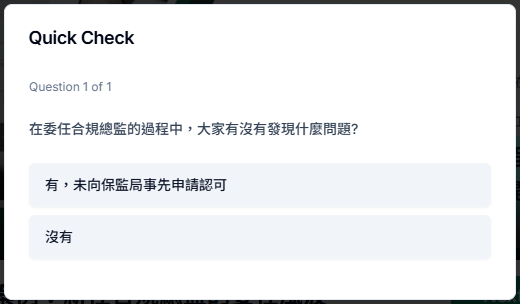
Quick Check
Some chapters include a quick check. You must answer correctly to continue learning.
Minimum Learning Time Requirement
- Each course has a minimum learning time requirement
- If you complete the content too quickly, the system will display a notification

Course Examination
A final examination is required to complete the course.
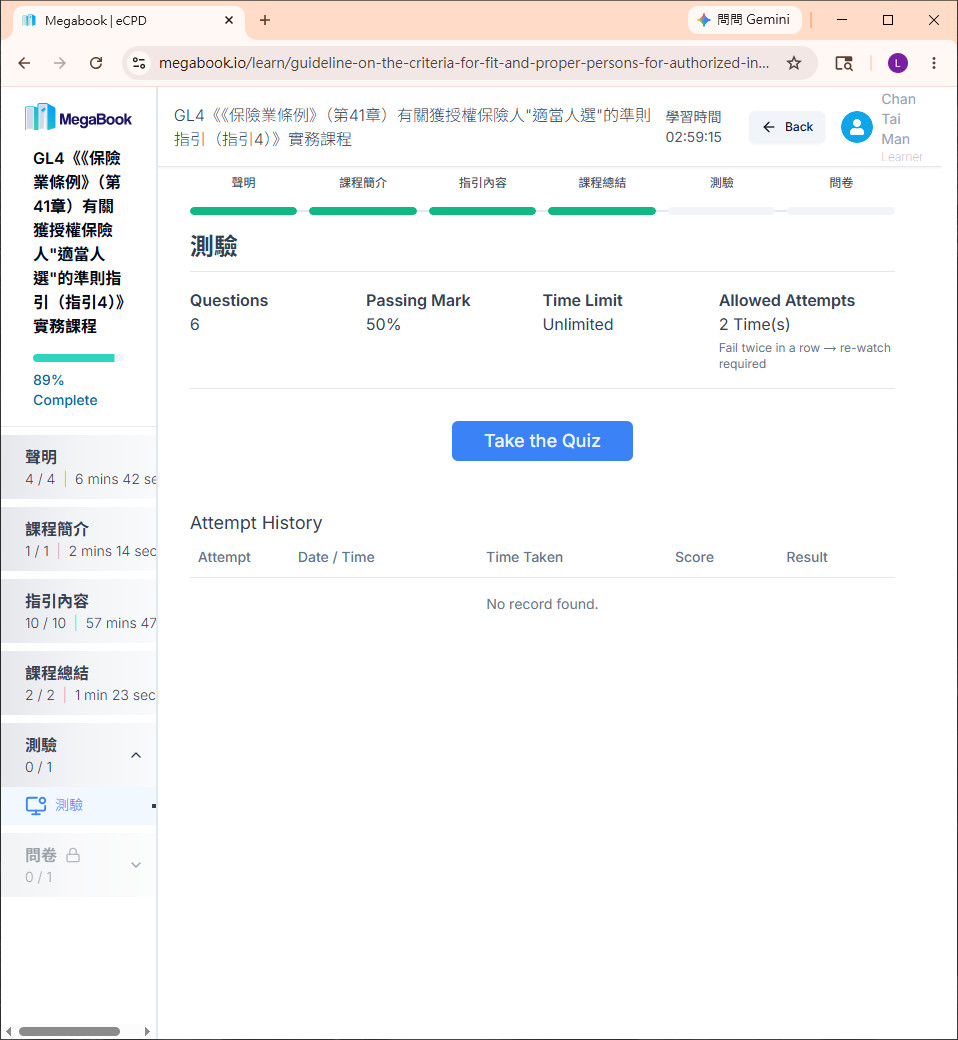
See the Examination Guide for details.
Frequently Asked Questions
Q: Does chapter completion progress get saved?
A: Yes. As long as you watch the entire instructional video for a chapter, the chapter will be marked as "Completed" and your progress will be saved automatically.
Q: Does video playback progress get saved?
A: No. If you don't finish watching a video, your playback progress will not be saved. We recommend completing at least one full chapter's video per session to minimize re-watching.
Q: Why can't I access some chapters?
A: Some chapters require completing the previous chapter to unlock.
Q: Why can't I skip or speed up the video?
A: To ensure you grasp the necessary professional knowledge, videos must be watched at normal speed.
Q: What does "Leave site?" mean?
A: This is a safeguard to prevent you from accidentally leaving the learning page or closing the browser tab.
- To continue learning, click "Cancel"
- To leave, click "Leave"
Note: Your video playback progress will not be saved after leaving.